
HD Camera for Android
One Music PlayerBeauty
4.5700.00 Reviews
- Version
- 2.1.0
- Installs
- 10.00M
- Age Rating
- Everyone
Screenshots
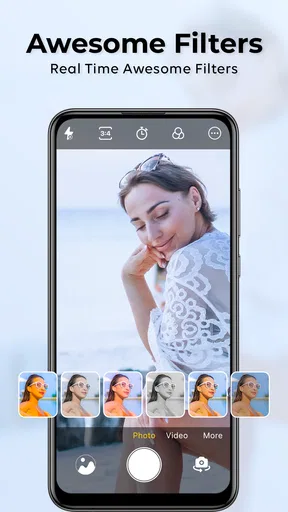
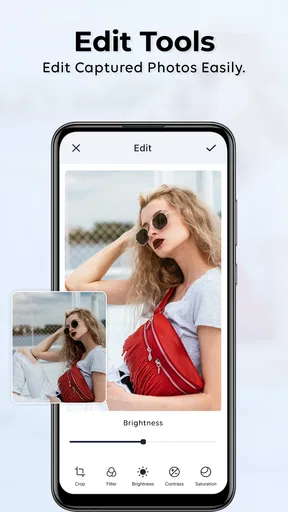


Our Review of HD Camera for Android
 Analysis by Appyee
I tend to judge a camera app not only by the pictures it can make, but by how quickly I can reach the controls when a moment is unfolding. HD Camera for Android gives you familiar shooting options alongside manual adjustments, so it can suit casual snapshots as well as a little experimentation. I’d treat it as an extra camera interface to try, rather than assume it will replace the camera already built into every phone.
Getting Started with HD Camera
First things first, downloading the HD Camera app is a breeze. Just head over to the Google Play Store, and you’ll find it right there. It’s a quick install, and before you know it, you’re up and running. The interface is pretty straightforward, which is a huge plus. I mean, who wants to spend hours figuring out how to use a camera app, right?
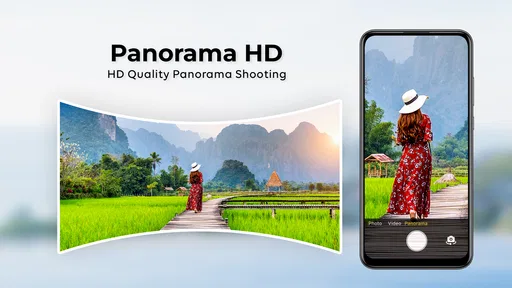
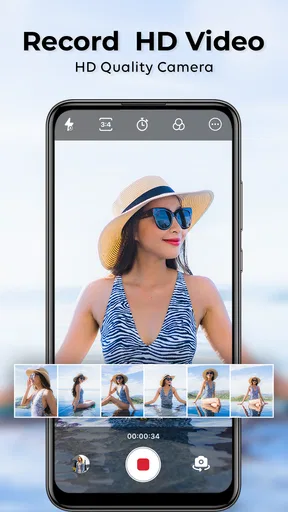
Once you open the app, you’re greeted with a clean and minimalistic design. It’s all very intuitive, with easy-to-navigate menus and options that make you feel like a pro photographer. You’ve got your standard photo mode, but there’s also video and panorama options. It’s like having all your favorite camera features packed into one app.
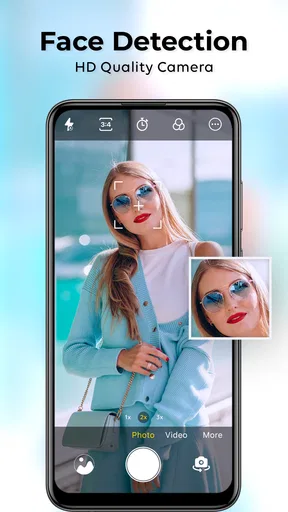
That range makes it easy to understand the appeal: you can choose a quick photo, record a clip, or try a wider scene without switching to a separate specialist tool. The developer is One Music Player, and the app sits in the beauty category, a fit that makes sense alongside its selfie-oriented beauty mode. It is free to install, while in-app purchases range from $0.99 to $99.99 per item, so I’d check any purchase prompt carefully rather than assume every option is included at no cost.
The Features You’ll Love
Now, let’s talk features. The HD Camera app is loaded with them, and they’re pretty impressive. One of my favorites is the real-time filters. You can try out different looks before you even take the shot. It’s like having a magic wand for your photos. Plus, there’s a whole bunch of them to choose from, so you can really get creative.
Another standout feature is the burst mode. Perfect for capturing those fast-moving subjects, whether it’s your pet doing something adorable or your kids playing in the park. Just hold down the shutter button, and the app takes a rapid series of shots. You’ll never miss a moment.
Let’s not forget about the manual controls. If you’re feeling adventurous, you can tweak the ISO, white balance, and exposure. It’s perfect for those times when you want to experiment and have a bit more control over your shots.
Those controls are most useful when the phone’s automatic choices are struggling. In a dim room, for example, changing exposure can help you decide whether to preserve a darker mood or bring more detail into the image. I’d make one adjustment at a time, take a test photo, and compare it with the automatic result; changing several settings together makes it harder to tell what actually helped. For everyday snapshots, leaving the controls alone is likely the quicker choice.
Readability and Quick Navigation
A camera app is often used one-handed and under time pressure, so a simple layout matters more than a long feature list. Here, the familiar photo, video, and panorama choices give a new user a sensible place to begin. I’d spend a quiet minute checking where the modes and manual options sit before relying on them at a birthday table or on a walk. A little practice avoids rummaging through menus while people are waiting.
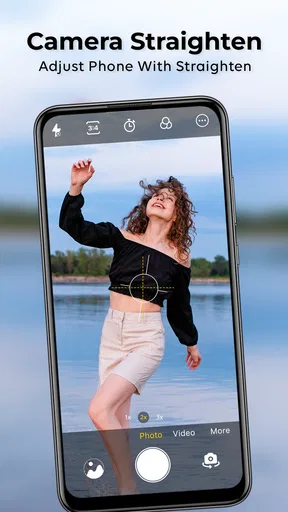
The grid and level guide can also help when framing is difficult. I find a grid useful for keeping a horizon visually steady, while the level guide is handy when I’m trying to hold a phone square to a building or document. These guides support composition, but they do not make a shot automatically straight: the phone still needs to be held carefully, and a quick review afterward can catch a tilt that was easy to miss while shooting.
Motor and Sensory Considerations
For someone who finds a long sequence of taps tiring, burst mode offers a practical alternative to repeatedly pressing the shutter, particularly when a subject is moving unpredictably. It is not always the right answer: holding the button may be awkward for some hands, and a burst can leave more images to sort through. For a posed portrait, one deliberate shot may be easier to manage than a rapid series.
Real-time filters give visual feedback before capture, which can make it easier to choose a look without editing later. The trade-off is that a filter may distract from checking focus, expression, or framing. I’d use the preview to settle on a style, then take a moment to inspect the scene itself. If strong visual effects are uncomfortable or make it harder to judge the subject, a plain, unfiltered shot is the simpler route.
The app is rated for Everyone, and its current version is 1.46, with Android 5.0 as the minimum operating system. That broad compatibility may make it worth trying on an older supported phone, but the experience still depends on the device and its camera. I would not assume that the same controls or results will feel identical across different screens and hardware.
Everyday Use and Situational Access
Picture a family gathering where a child is moving between the table and the garden. I’d use burst mode for a fleeting expression, then switch back to a single shot for a calmer group photo. If the background is busy, the grid can help me place faces more deliberately; if everyone is posing, I’d avoid fiddling with manual controls and keep the interaction moving. This is where the app’s mix of straightforward modes and optional adjustments feels most useful.
On a walk, panorama can be a convenient way to include a broad view without stitching separate images together yourself. It works best when there is room to move steadily and the scene is not changing too quickly. For a moving crowd, a standard photo or short video may be less frustrating. Likewise, the beauty mode may suit a quick selfie when you want a softened look, but I’d turn it off for a natural portrait or when accurate skin detail matters.
Compared with the camera app that comes with a phone, this one is worth considering if you want to explore its particular combination of filters, burst shooting, and manual adjustments in one place. The built-in camera may remain the better choice if you already know its controls, rely on a familiar workflow, or prefer not to maintain another app. A dedicated editing app is a better fit when the main task is polishing pictures after capture; HD Camera’s appeal is choosing and shaping the shot while taking it.
Any Downsides?
Of course, no app is perfect, and HD Camera is no exception. I noticed that some of the advanced features can be a bit overwhelming if you’re not used to them. But hey, there’s a learning curve with everything, and once you get the hang of it, it’s smooth sailing.
Battery usage can also be a factor. If you’re planning on doing a lengthy photo shoot, make sure you’ve got a charger handy. The app can be a little power-hungry, which is something to keep in mind.
There is also a practical cost to having more choices: switching modes or adjusting settings can slow down a spontaneous moment. I’d use the automatic approach when speed matters and save ISO, white balance, and exposure experiments for scenes that are not about to disappear. If you mainly want a point-and-shoot camera with no learning curve, your phone’s built-in app may be a more comfortable everyday option.
Its popularity suggests plenty of people have found it worth trying: it has a 4.4 average from around 47,000 ratings and more than 5 million installs. That is useful context, not a guarantee that it will suit a particular phone or way of holding and viewing it. I’d test the controls in a low-pressure setting first, especially if you depend on a specific camera layout or need to make adjustments quickly.
Who Should Give It a Try?
I’d recommend giving it a look if you enjoy experimenting with how a photo is framed, want quick access to burst shooting, or like previewing filters before taking a selfie. It can also suit someone who wants photo, video, and panorama options together and is willing to spend a little time learning the manual controls. Since the app is free to install, it is easy to explore the basic experience before deciding whether any optional purchase is worthwhile.
I’d be more cautious if you need a highly predictable interface, are easily slowed down by extra controls, or prefer the processing and familiar shortcuts of your phone’s default camera. People who need a specific accessibility behavior should try the app directly with their own device and routine rather than assume that a clean-looking interface will meet every need. That matters especially when small controls, quick gestures, or visual previews are part of the task.
Final Thoughts on HD Camera
Overall, I’d say the HD Camera app is a solid choice for anyone looking to up their photography game without investing in expensive equipment. It’s packed with features that cater to both beginners and seasoned photographers.
Whether you’re snapping pics of your brunch or capturing epic landscapes on your travels, this app has got your back. It’s user-friendly, fun, and offers a lot of bang for your buck. So, if you’re on the hunt for a new camera app, give HD Camera a try. You might just fall in love with photography all over again.
My more measured recommendation is to try it when you have time to learn its layout, then decide whether its extra controls genuinely improve your own photos. For a quick selfie or a moving pet, burst mode and a filter preview can be handy; for a fast, no-fuss snapshot, the phone’s usual camera may still win. That balance is what makes this app interesting: it offers room to experiment, but it works best when you choose the features that help rather than use every option in every shot.
Privacy and Permissions
See what permissions an app requests and how it handles your data.
- Location
- approximate location (network-based), precise location (GPS and network-based)
- Phone
- read phone status and identity
- Photos/Media/Files
- read the contents of your USB storage, modify or delete the contents of your USB storage
- Storage
- read the contents of your USB storage, modify or delete the contents of your USB storage
- Camera
- take pictures and videos
- Microphone
- record audio
- Wi-Fi connection information
- view Wi-Fi connections
- Device ID & call information
- read phone status and identity
- Other
- view network connections, connect and disconnect from Wi-Fi, control flashlight, full network access, set wallpaper, control vibration, prevent device from sleeping, modify system settings, Google Play license check
Verdict
Strengths of HD Camera for Android
- High-resolution photo quality.
- Easy-to-use interface.
- Multiple shooting modes available.
- Customizable settings for pros.
- Fast autofocus feature.
Limitations of HD Camera for Android
- Contains in-app advertisements.
- Limited editing tools.
- Consumes more battery power.
- Large file size for downloads.
- Some features are paid.
Other Releases by One Music Player
View All
Universal Tv Remote-Cast to TV
House & Home4.1

Smart Watch - Clock Wallpaper
Personalization4.6

AirTag Scan: Bluetooth Tracker
Tools4.5

AI Music & Song Generator
Music & Audio4.6
Similar Picks in This Category
View All
Beauty Makeup Editor & Camera
Photo & Video Editors - Instant Solution4.7

Perfect365: Face Makeup Editor
Perfect365, Inc.3.5

Mirror Plus - HD Mirror app
Digitalchemy, LLC4.8

Cute Lock Screen & Wallpapers
Prometheus Interactive LLC4.6

Phone Mirror app - True Mirror
Cards4.6

Beauty Camera: Sweet Camera
Mobile_V54.6
Frequently Asked Questions
What features does HD Camera for Android offer?
HD Camera for Android provides a variety of features designed to enhance your photography experience. It includes manual controls for focus, exposure, and white balance, as well as a range of filters and effects. The app also supports high-resolution photo and video capture, panoramic shooting, and continuous shooting modes.
Is HD Camera for Android user-friendly for beginners?
Yes, HD Camera for Android is designed with an intuitive interface that makes it easy for beginners to navigate. The app offers simple controls and a user-friendly layout, allowing users to quickly access various features. Additionally, there are helpful tutorials and tips included to guide new users through the app's capabilities.
How does HD Camera for Android compare to the default camera app?
HD Camera for Android offers more advanced features compared to most default camera apps. It provides greater control over camera settings, such as ISO and shutter speed, and includes additional shooting modes and filters. This makes it a great option for users looking to take their mobile photography to the next level.
Does HD Camera for Android consume a lot of battery?
HD Camera for Android is optimized for performance, but like any feature-rich camera app, it can consume battery, especially during extended use. It is advisable to monitor your battery usage and close the app when not in use. Using features like high-resolution video recording may also increase battery consumption.
Is HD Camera for Android free to use, or are there in-app purchases?
HD Camera for Android is free to download and use, offering a comprehensive set of features at no cost. However, there are optional in-app purchases available that unlock additional features and remove ads. These purchases are designed to enhance the user experience for those who want more advanced functionality.
